So simple, a long-held wish fulfilled
I’ve been wanting to add a soft shutdown button to my Raspberry Pi. Having to log in via SSH and then use sudo shutdown -h every time is cumbersome. The included power cord with a switch only allows for hard shutdown and doesn’t protect the memory card from file system corruption.
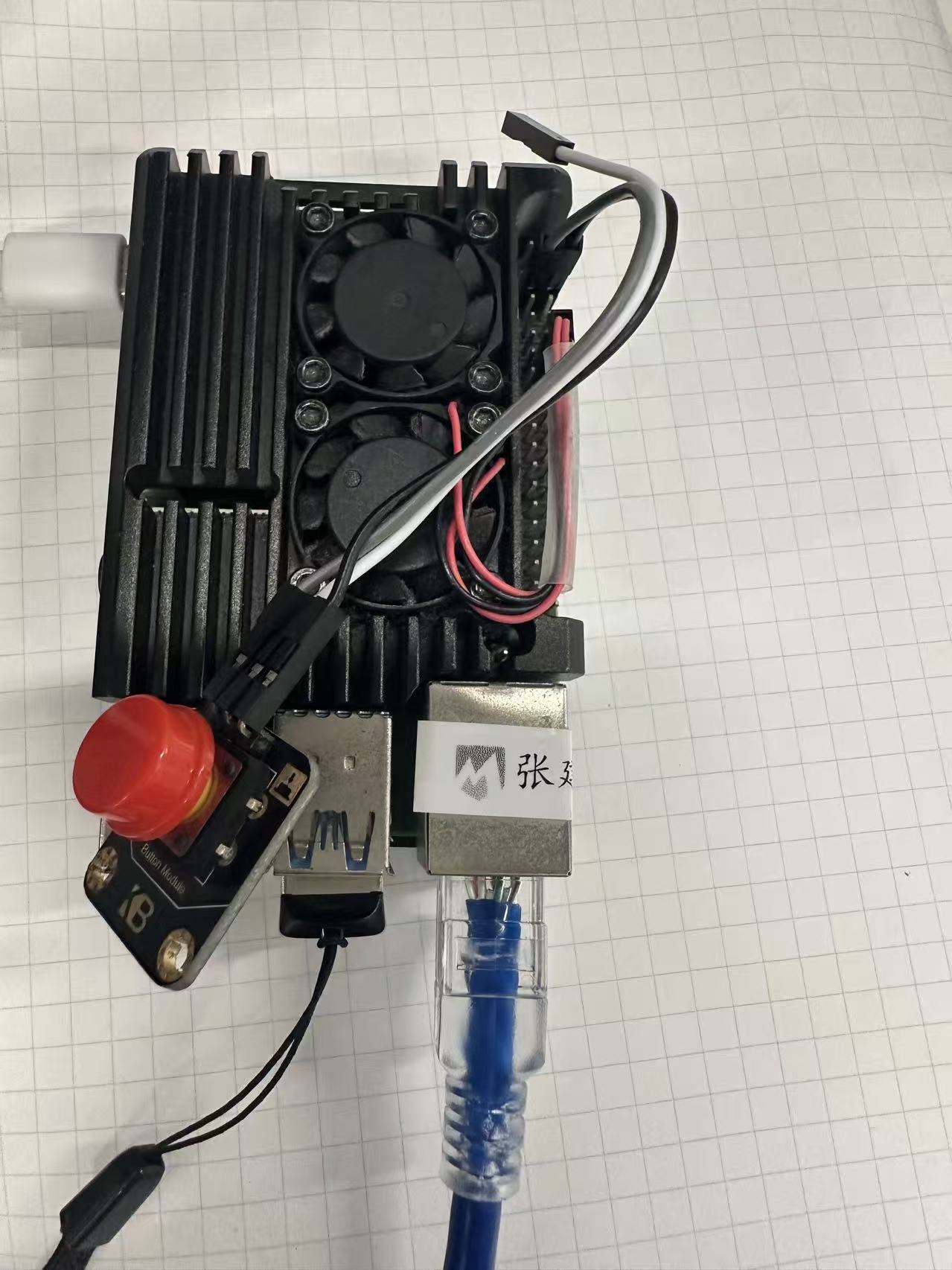
I happened to have a button from a children’s DIY kit on hand, and wondering if I could use it, I asked Gemini. I was surprised by how good the Raspberry Pi ecosystem is now. Gemini immediately gave me three solutions.
Three solutions
There are three main ways to add a physical button to a Raspberry Pi to achieve a “soft shutdown” (safe shutdown). The simplest and recommended method is to use the system’s built-in gpio-shutdown overlay, which requires no scripting.
| Solution | Difficulty | Hardware Requirements | Pros | Cons |
|---|---|---|---|---|
| gpio-shutdown | Low | Tactile button, Jumper wires | Native support; zero CPU usage; supports both power-on and power-off. | Default pin (GPIO 3) conflicts with I2C bus. |
| RPi 5 Power Button | None | None | Most stable official method; uses dedicated PMIC; no extra hardware needed. | Limited to Raspberry Pi 5 only. |
| Python Script | Medium | Tactile button, Jumper wires | Highly customizable (e.g., distinguishing long-press vs. short-press). | Requires background process; cannot wake the Pi once it’s powered off. |
My choice
Solution 3 offers more flexibility, but it comes at the cost of performance. Since I don’t currently have many customization needs, I’ve chosen Solution 1.
Concret steps:
Modify the configuration file (Recommended, simplest) This method utilizes a built-in feature of the Raspberry Pi kernel. Only one file needs to be modified and two wires connected.
Wiring: Connect a push button to GPIO 3 (physical pin 5) and GND (physical pin 6) on the Raspberry Pi.
Configure the software:
In the terminal, type:
sudo nano /boot/config.txt
(if it’s a new system, it might be/boot/firmware/config.txt).Add the line
dtoverlay=gpio-shutdown
to the end of the file.Save and exit (Ctrl+O, Enter, Ctrl+X), then reboot:
sudo reboot.
Usage:
When plugged the button, write the config.txt, reboot and all is set.
Shutdown: Press the button while the Raspberry Pi is powered on; the system will perform a safe shutdown.
Power On: With the device powered off (but not unplugged), pressing the same button once will restart the system.
Note: GPIO 3 is also used for I2C by default. If you must use I2C, you can change the power-off pin parameters (e.g., dtoverlay=gpio-shutdown, gpio_pin=17), but non-GPIO 3 pins typically do not support one-button power-on.
I didn’t turn on I2C now, though I have a touchscreen which was on I2C.
Check if worked as expected
Verify if a “software shutdown” was performed
Because SSH disconnection is too rapid, I’m not sure whether pi did a soft shutdown. So again I asked Gemini, How can I confirm it’s not a “forced power-off”? It told me using the following methods:
Check the system log: After rebooting, run
journalctl -b -1 -u systemd-logind. If you see “System is powering down…” or a record processing KEY_POWER, it indicates a normal shutdown triggered by this method.LED status: Observe the onboard green LED at the last moment of shutdown. In a software shutdown, it will typically flash regularly 10 times before turning off; in a forced power-off, the green light will disappear instantly.
Yep, it worked, now I can power off the raspberry pi without ssh into it anymore!